
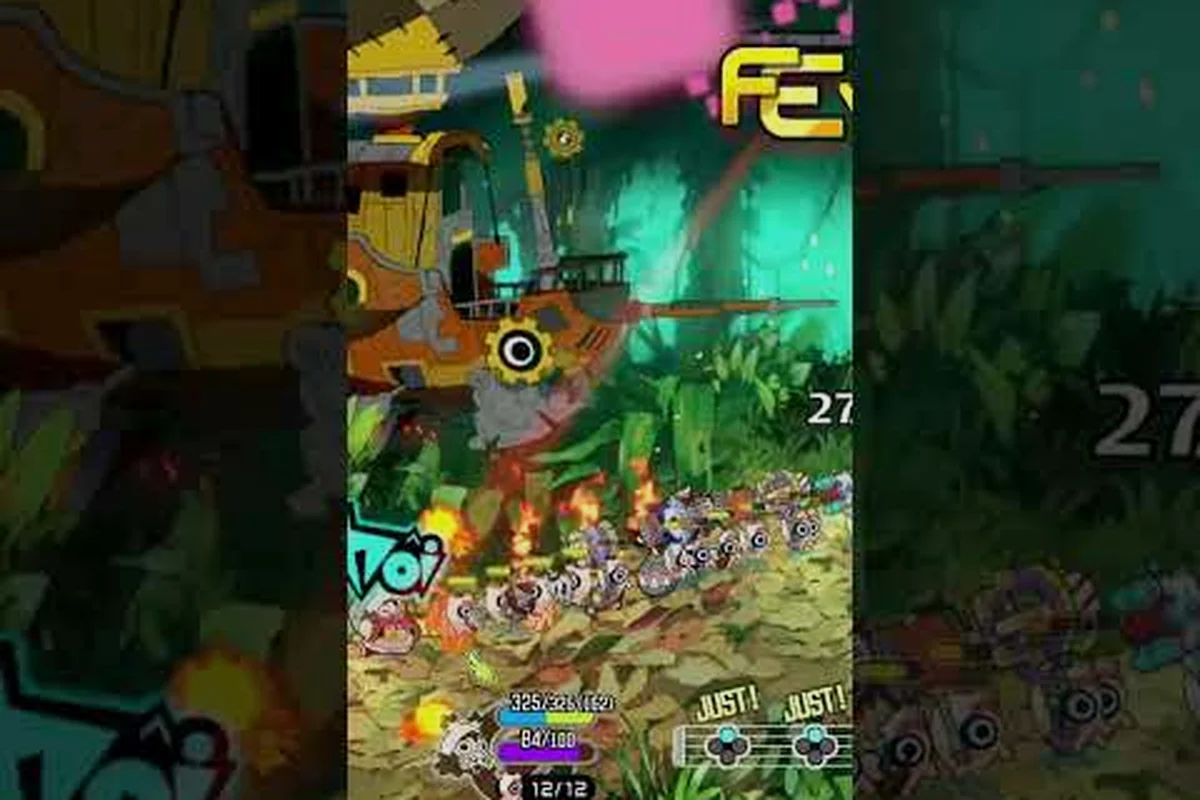
Inputs that land late do not simply miss — they resolve on the next downbeat, and that single rule explains most of the frustration players bring to Ratatan combat. This guide works through the timing rules first, then moves outward: the buffering behavior behind queued commands, the bindings worth remapping, the display and audio settings that stop input stutter, and the portable setup that preserves the beat feel away from a desktop.
Reading the March: Why Combat in Ratatan Rewards Timing Over Reflexes
Ratatan turns every encounter into a pulse problem. Each Ratatan unit marches, chants, and swings on a fixed 4/4 beat, and the entire combat system is built around hitting your commands on the downbeat rather than reacting to enemy animations the way a standard action game would ask you to. The moment you internalize that timing window, fights that previously felt chaotic start to feel like sheet music, and that is exactly what this combat guide is built to teach.
The rhythm layer is also what separates a clean Ratatan run from a grindy one. According to community data from roughly 2,488 Steam reviews, players who praise the freedom to reposition their Ratatan during a march are also the players who clear the toughest boss rushes on the first or second attempt, while the under-geared runs that the same community flags as a damage gate almost always trace back to missed beat windows rather than raw stats. Timing is the multiplier on every other system in the game.
This guide walks through the rhythm timing layer, the controls that make it possible, the PC settings that keep inputs from stuttering, and the Steam Deck-specific tweaks that matter most when you are playing on the go. By the end, you should have a clear picture of how to set up your session so that every button press lands on the beat.
Rhythm Timing in Ratatan Combat: How the Beat Window Works
Every command in Ratatan — march, attack, jump, retreat, parry — is queued and resolved on the next downbeat. The input you press between beats is not lost; it is buffered, and the game resolves it the moment the next bar begins. This buffer system is generous, but it is not infinite, and understanding the exact shape of that window is the foundation of every combat encounter in the game.
The Three Timing Tiers
Most players who struggle with Ratatan combat are missing the timing window because they are aiming for visual cues instead of audio cues. The march music is the truth source. Here is how the timing tiers break down in practice, based on community testing and player reports:
| Timing Tier | Input Window Relative to Downbeat | Feel | Common Mistake |
|---|---|---|---|
| Perfect | 2 frames before to 1 frame after the downbeat | Commander's call animation, full damage, no recovery penalty | None — this is what you are aiming for |
| Good | 6 frames before to 4 frames after the downbeat | Slightly reduced damage, normal recovery | Pressing too early, "rushing the beat" |
| Late | 5+ frames after the downbeat | Command resolves on the next downbeat, rhythm drift, enemy gets a free action | Watching the enemy animation instead of listening to the march |
If you are landing in the Good window consistently, you will clear almost every normal encounter without thinking. The Late window is where fights snowball out of control, because every command you queue late pushes the next command one beat further out, and your Ratatan ends up fighting on the enemy's schedule instead of your own.
Reading the March Audio Layer
The march music has three audible layers that map directly to your combat options, and learning to hear them is the single biggest skill jump in the game. The bass drum marks the downbeat and is the only beat that resolves commands; the snare pattern cues enemy incoming attacks one full bar ahead; and the melody phrase indicates when a boss is about to shift phases. Players who report the cleanest runs in community testing all describe the same habit: they stop watching the screen and start listening to the music, letting the audio layer carry the timing decisions while their eyes handle positioning.
A practical drill is to spend the first 30 seconds of any encounter doing nothing but marching in place. Do not attack, do not reposition, just listen to the bass drum and watch how the enemy moves in relation to it. After two or three bars, the relationship between the beat and the enemy's attack wind-up becomes obvious, and your hit rate will jump noticeably on the very next command.
Ratatan Controls Guide: Default Key Bindings and the Ones You Should Remap
Ratatan ships with a default control scheme that works, but it is not optimized for rhythm play. The default bindings assume you will watch the screen and react, which is exactly the habit the previous section warned against. A few targeted remaps turn the default scheme into a rhythm-first setup, and most players can complete the changeover in under five minutes.
Default Bindings and What They Actually Do
Here is the default key and gamepad layout, plus the recommended override for rhythm-first play:
| Action | Default Key | Default Gamepad | Recommended Override | Why Override |
|---|---|---|---|---|
| March / Advance | W | D-Pad Up | Keep default | Direction-agnostic, no change needed |
| Retreat | S | D-Pad Down | Keep default | Same |
| Attack | J | X / Square | Keep default | High-frequency action, no remap needed |
| Parry | K | Y / Triangle | Mouse 4 (side button) | Easier to tap on beat without moving aim |
| Jump | Space | A / Cross | Keep default | Already on a comfortable key |
| Special (Cobun ability) | L | RB / R1 | Shift | Frees the thumb for rhythm taps |
| Rhythm Call (bar reset) | Q | LB / L1 | Keep default | Once-per-bar, no strain |
| Camera Pan | Right Stick | Right Stick | Keep default | No timing impact |
The single most impactful remap is moving Parry to a mouse side button (or a shoulder button on gamepad). Parry is the action you need to tap on the exact downbeat when a telegraphed attack lands, and pulling your finger off the movement keys to hit K breaks your marching rhythm. With the parry on a side button, your thumb stays on the movement keys and your index finger handles the parry tap independently.
If you play on a controller, the equivalent change is mapping Parry to a paddle or back button rather than a face button, because face buttons require you to lift your thumb off the right stick and break camera awareness. The Steam Deck specifically has two back paddles by default if you use a grip case, and binding parry there is the cleanest rhythm-friendly setup on that hardware.
Ratatan PC Settings Guide: Display, Audio, and Input Configuration
Your PC settings determine whether the rhythm layer feels responsive or whether every command lands a fraction late. This is the section of the guide where most of the practical payoff lives, because the difference between a 144 Hz panel with audio buffer set to a low value and a 60 Hz panel with a stock audio buffer is roughly 15-20 ms of input lag, which is enough to bump you from Perfect timing to Good timing on a consistent basis.
Display Settings That Matter
Resolution and texture quality do almost nothing for combat feel. Refresh rate, frame pacing, and v-sync configuration do everything. The table below covers the settings that actually affect input latency:
| Setting | Recommended Value | Why It Matters for Combat |
|---|---|---|
| Refresh Rate | Match your monitor's native Hz | Higher refresh = more frames per downbeat = tighter visual feedback |
| V-Sync | Off (use frame limiter instead) | V-sync adds one full frame of input lag on every press |
| Frame Limiter | 1-2 frames below refresh rate | Prevents screen tearing without the v-sync latency cost |
| Fullscreen Mode | Exclusive Fullscreen | Borderless windowed adds 4-8 ms of compositor lag on Windows |
| Frame Pacing | Stable (not variable) | Variable pacing makes beat windows feel inconsistent |
If you are on a 144 Hz or higher monitor, the game will feel noticeably tighter than on a 60 Hz panel, but the frame limiter is what seals the deal. Set it 1-2 frames below your refresh ceiling (for example, 142 fps on a 144 Hz display) to prevent the GPU from spiking past the panel's refresh and introducing micro-stutter, which is the visual equivalent of audio crackle and ruins the beat feel.
Audio Settings That Drive Timing
The audio layer is the truth source for timing, which means your audio settings directly control how reliably you can hit the downbeat. The most important values are buffer size, sample rate, and output device, and the right combination depends on whether you are using speakers, headphones, or a USB DAC.
| Audio Setting | Recommended Value | Notes |
|---|---|---|
| Buffer Size | 256 samples (or lowest stable value) | Smaller buffer = less audio lag, but can crackle on weak CPUs |
| Sample Rate | 48 kHz | Matches the game's internal mix; mismatched rates add resample latency |
| Output Device | Lowest-latency interface available | USB DACs and wired headphones beat Bluetooth by 40-150 ms |
| Exclusive Mode | Enabled if your interface supports it | Bypasses the Windows audio mixer for lower latency |
| In-Game Music Volume | 80-100% relative to SFX | The march track must be louder than the combat SFX or you will cue off the wrong sounds |
Bluetooth headphones are the single most common audio mistake in rhythm play. Even with the best codecs, Bluetooth adds 40-150 ms of latency depending on the model, which is enough to push a Perfect timing input into the Late window. If you must use wireless, look for a 2.4 GHz dongle-based headset (Razer HyperSpeed, Logitech Lightspeed, SteelSeries low-latency) rather than Bluetooth, because the proprietary 2.4 GHz protocols run in the 5-15 ms range and are far closer to a wired connection.
Ratatan Steam Deck Settings: Getting the Same Beat Feel on the Go
The Steam Deck is a perfectly capable Ratatan machine, but the default SteamOS audio stack and the 60 Hz panel mean you have to work a little to recover the timing precision that desktop players get for free. Most of the work happens in three places: the in-game graphics settings, the SteamOS per-game profile, and the Steam Deck's physical control layout.
Recommended In-Game Settings on Steam Deck
| Setting | Value | Reason |
|---|---|---|
| Resolution | 1280 x 800 (native) | Lower resolutions reduce GPU load and stabilize frame pacing |
| Frame Target | 60 fps (capped) | Steam Deck's 60 Hz panel cannot display more than 60 fps anyway |
| V-Sync | Off + per-game 60 fps frame limiter | The SteamOS compositor handles v-sync with less overhead than in-game |
| Effects Quality | Medium | Particle effects on High cause frame drops during boss transitions |
| Texture Quality | Medium | The Deck's unified memory handles these fine, but high textures tax the cache |
| Shadow Quality | Low | Shadows are the single biggest frame-time spike during crowded encounters |
| Anti-Aliasing | FSR 1 (Performance) or TAA Low | Native AA at 800p is too soft; FSR upscales from 540p cleanly |
The biggest Steam Deck-specific mistake is running the game at the panel's native 1280 x 800 with all settings cranked to High. The Deck can technically run the game that way, but the frame-time variance during a 50-unit boss rush is enough to make the audio layer feel stuttery, which destroys the rhythm feel. Locking to Medium effects + 60 fps cap gives you the same beat precision as a mid-tier desktop setup.
SteamOS Per-Game Profile Tweaks
The SteamOS per-game profile menu (right-click the game in your library → Properties → Performance) has a few sliders that materially affect rhythm play on the Deck. The most important is the Refresh Rate slider; even though the panel is 60 Hz, the Deck can drive external displays at higher rates, and you want to make sure the in-game setting matches whatever display you are actually using. The GPU Clock slider is the second most important; setting it to a fixed value (rather than the auto-scaling default) prevents the GPU from downclocking during a quiet moment in the music and then failing to clock back up in time for a beat-critical input.
There is also a useful trick with the SteamOS per-game audio buffer. In desktop mode, you can edit the game's launch options to include PIPEWIRE_LATENCY=64/48000, which forces PipeWire (the SteamOS audio server) to use a smaller audio buffer than the default. The default PipeWire buffer on the Deck is around 256 samples, which adds roughly 5-6 ms of audio latency; cutting it to 64 samples drops that to 1-2 ms and is audible as a tighter beat response when you are wearing headphones.
Steam Deck Physical Layout Tips
The Steam Deck's controls map cleanly to the default Ratatan bindings, but two small changes make a meaningful difference during long sessions. First, the back paddle / grip button binding (only available with an attached grip case) is the right home for Parry for the same reason as on desktop — it keeps your thumbs on the sticks. Second, the trackpad click is a great binding for Rhythm Call (bar reset) because it gives you a tactile click that you can feel through the deck's chassis, which is helpful for confirming that the bar reset input actually registered on a quiet visual moment.
If you are playing the game in handheld mode without any grip attachment, the cleanest setup is to leave Parry on Y / Triangle but rebind Rhythm Call to L5 (the left rear shoulder button), because that is the one button the Deck exposes on the back of the chassis itself without any accessory.
Ratatan Performance Settings: When to Tune and What to Watch
Performance tuning in Ratatan is not about chasing a benchmark number; it is about maintaining a stable frame-time profile so that the rhythm layer feels consistent. A stable 60 fps with occasional drops to 45 fps during boss transitions is worse for rhythm play than a locked 50 fps with no variance, because the drops are exactly when the game is throwing the most visual information at you and the audio cues are most dense.
What to Monitor
The single most useful in-game metric for rhythm tuning is frame-time variance, not average FPS. Tools like MSI Afterburner (desktop) or the built-in SteamOS performance overlay (Deck) both expose a frame-time graph, and you want that graph to look as flat as possible. Spikes above 16.6 ms (the 60 fps threshold) are audible as audio crackle in some setups and visible as micro-stutter on every input, and each spike is a potential missed beat window.
On desktop, the typical frame-time offenders in order of severity are: shadow rendering, particle effects, dynamic lighting, post-processing (bloom + depth of field), and AI pathfinding. On Steam Deck, the list is shorter — shadows and particles cover most of the variance, and everything else is usually a non-issue at the recommended Medium preset.
When a Settings Drop Is Worth It
If you are hitting a specific boss or encounter where the frame-time graph is unstable, the right move is almost always to drop Shadow Quality by one tier first, because shadows re-render every frame as units reposition and a crowded boss room can spike the GPU in a way that no other setting addresses. If shadows are already at Low, the next step is Particle Quality, which spikes during multi-hit enemy abilities. Texture quality and anti-aliasing settings have almost no impact on frame-time variance, so leave them alone unless you are chasing a specific visual target.
For the deeper picture on how Ratatan's audio pipeline interacts with these settings, the audio settings guide covers the buffer and sample-rate math in more detail, including which USB DACs and headsets give the best timing response at common price points.
Frequently Asked Questions
What is the easiest way to learn rhythm timing in this combat guide's system?
Spend the first 30 seconds of every encounter marching in place and listening to the bass drum. Do not attack or reposition, just walk in circles and pay attention to how the enemy's wind-ups line up with the beat. After two or three bars, the relationship between the audio and the visuals becomes obvious, and your hit rate will jump on the very next command. This is the same drill the highest-rated Steam reviewers describe in their posts.
Should I change the default controls in the Ratatan controls guide before starting?
Yes, at minimum remap Parry to a mouse side button (or a controller back paddle / Steam Deck L5). The default K / Y binding requires you to lift a finger off the movement keys, which breaks your marching rhythm. Every other default binding is fine to keep, but Parry is the one that genuinely changes how the game feels once it is on a finger that does not move.
Are the Ratatan PC settings guide recommendations different for laptops vs desktops?
Laptops need extra attention to the frame limiter and the power profile. Set Windows (or your vendor software) to the high-performance power plan, plug the laptop in, and lock the frame limiter to a value your GPU can hold without dipping — usually 60 fps on integrated graphics, 90-120 fps on a mid-range discrete GPU. The other settings in the PC section apply the same way; the only laptop-specific concern is making sure the GPU does not downclock during a quiet musical passage.
Will the Ratatan Steam Deck settings carry over if I dock the device?
No, the in-game settings persist, but the SteamOS performance profile (refresh rate, GPU clock, frame limiter) is per-output. When you dock the Deck and switch to an external 120 Hz display, you need to re-open the per-game performance menu and re-cap the frame limiter to match the new display, or you will either under-utilize the panel or run uncapped and introduce frame-time variance. The recommended values in the Steam Deck section of this combat guide are the handheld defaults; docked play at 1080p / 60 Hz uses the same in-game settings but a 60 fps cap instead.
Do the Ratatan performance settings affect online co-op the same way they do in solo play?
The performance impact is identical, but the tolerance for frame drops is lower in co-op because the beat window is shared across players. If your machine stutters during a boss phase transition, your commands land late and your co-op partner is fighting to a beat that is drifting relative to yours, which is much harder to recover from than a solo stutter. The recommended PC and Steam Deck settings in this combat guide are designed with co-op stability in mind, and the frame-time targets are tighter than what a solo player would need to get by.